
How to take and send screenshots to Microsoft Teams with Power Automate

Learn how to automatically take website screenshots and post the images to a Microsoft Teams channel with the PagePixels Screenshots connector in Power Automate.

Introduction

Using the PagePixels Screenshots Power Automate connector, you can automatically capture screenshots of web pages and send the images to thousands of services, including Microsoft Teams.

PagePixels is free to start, and this tutorial demonstrates how to take automatic recurring screenshots of a website and post the images to a Microsoft Teams channel on a daily schedule.

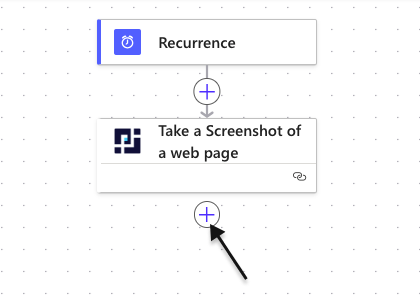
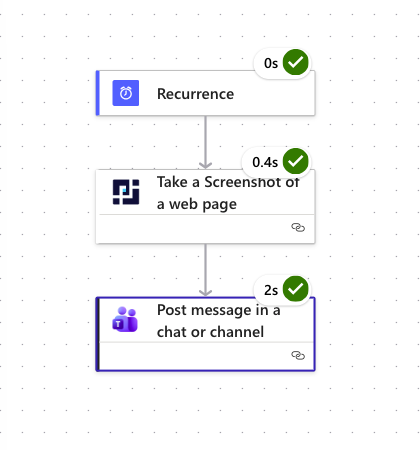
Power Automate Flow we'll create in this tutorial:
How to capture and send screenshots to Microsoft Teams in Power Automate

To create a Power Automate flow that every day takes a screenshot of a web page and posts the image to a Microsoft Teams channel:

1

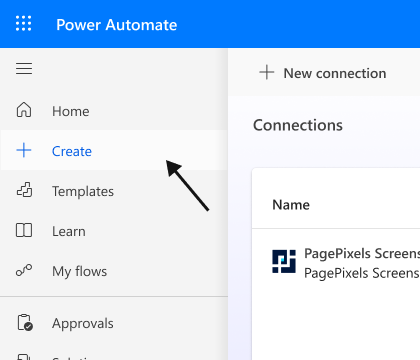
Create a new flow

Click the + Create button.

2

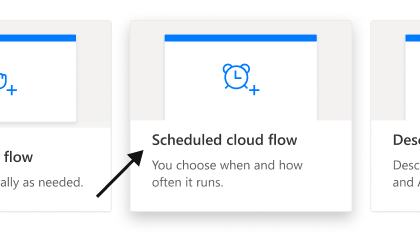
Schedule your automation

Click the Scheduled cloud flow option.

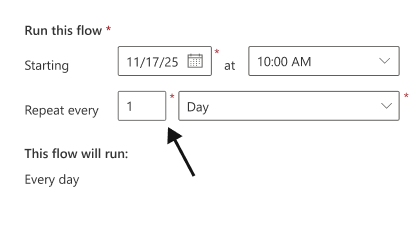
Configure your schedule. For a daily screenshot, set the Repeat every field to the 1 Day option.

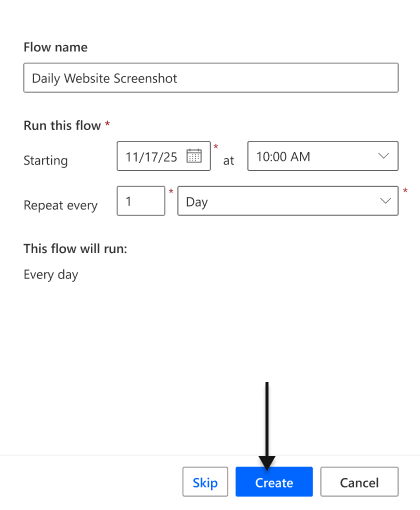
Click the Create button.

3

Add PagePixels Action

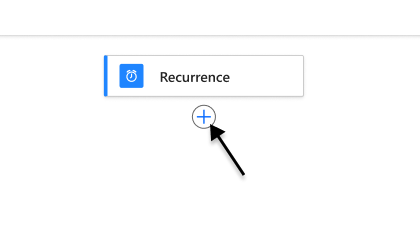
Click the + circle button.

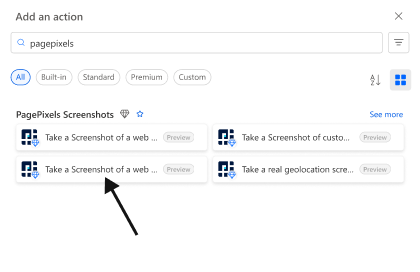
Search for PagePixels. Select the Take a Screenshot of a Web Page action.

4

Configure your screenshot

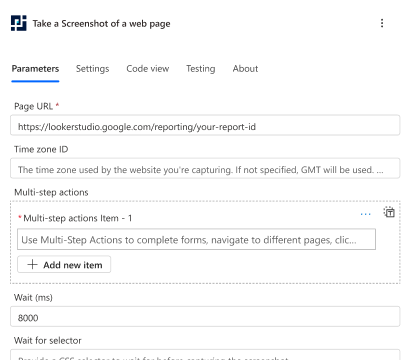
Copy and paste your website link into the "Page URL" field.

Configure your screenshot to fit your needs with 20+ options. Note: Page URL is the only required field. All other fields are optional.

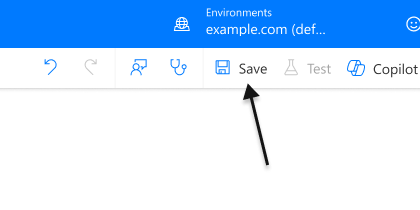
Once you're done, click the Save button.

5

Add the Microsoft Teams Post Message Action

Click the + circle button.

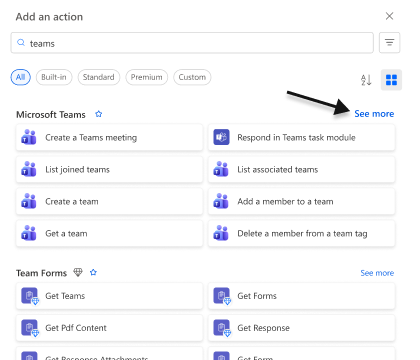
Search for "teams" and Microsoft Teams should appear at the top. Next, click the See More actions link.

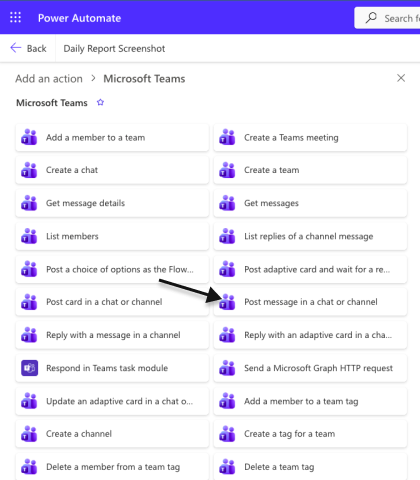
Select the Post message in a chat or channel action.

6

Configure your Microsoft Teams action

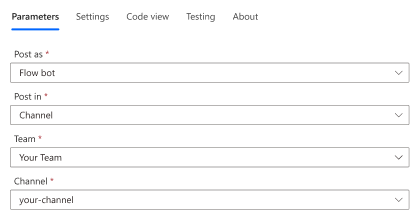
In the Parameters tab, configure "Post as", "Post in", "Team", and "Channel" fields to your preference.

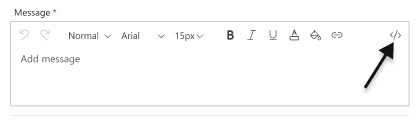
In the "Message" field, switch to code mode by clicking the code icon in the top-right.

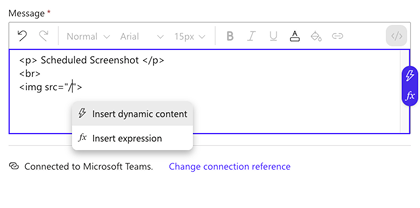
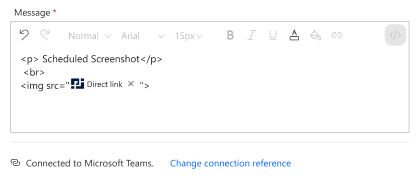
Add an img HTML tag to the "Message" field.

To include your screenshot, use the slash command (or click the lightning bolt icon) to add dynamic content into the src attribute of your img HTML tag.

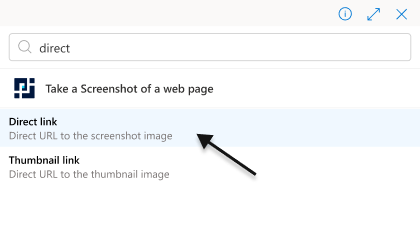
Search for and select the Direct Link item from the PagePixels action.

Finish configuring your message.

Once you're done, click the Save button.

7

Test your Flow

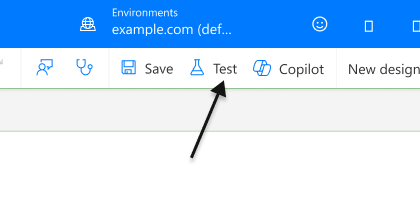
Click the Test button.

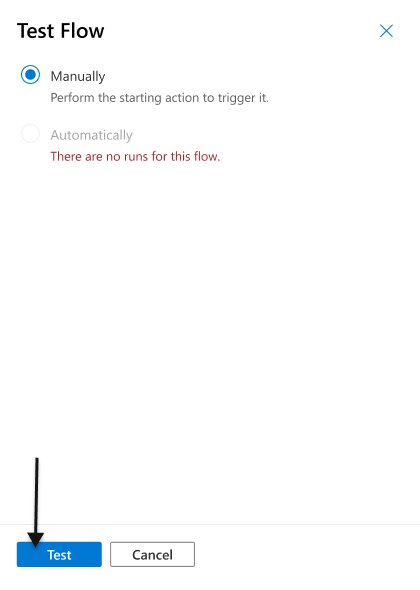
Select the Manually option. Click Test.

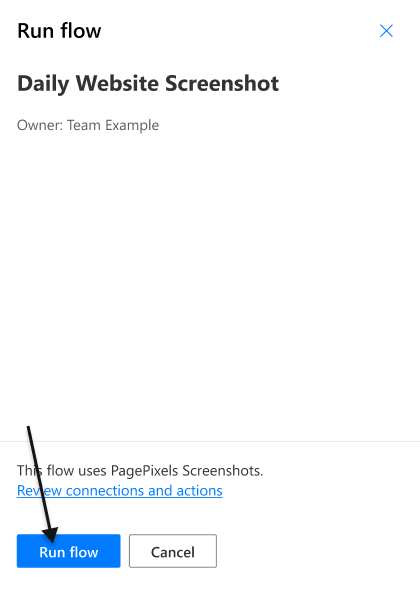
Click Run Flow.

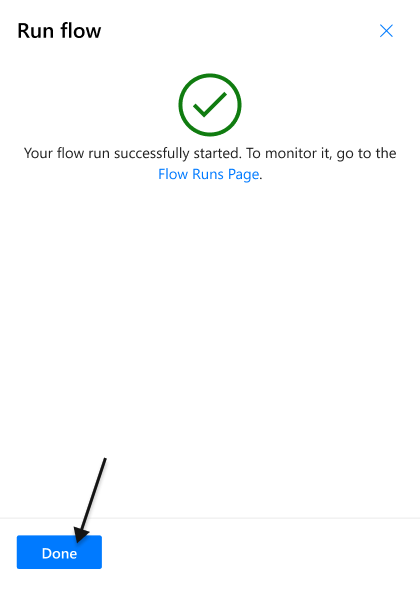
Click Done.

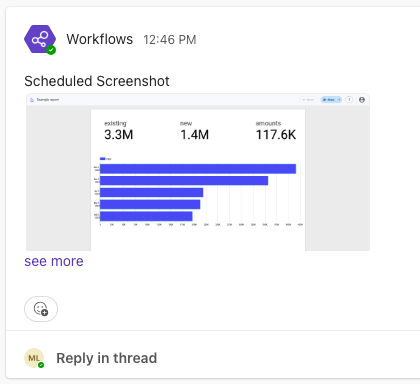
After a successful test run in Power Automate, you'll see your screenshot message appear in Microsoft Teams.

For example:

See our Power Automate Help Guide for more information about our Power Automate integration.

What else can PagePixels do?

When you automate screenshots with PagePixels and Power Automate, you can also:

  • Automate clicking buttons, filling out forms, performing a search, and more - all before taking a screenshot with PagePixels Multi-Step Screenshot functionality.
  • Capture screenshots from different locations around the world with PagePixels Take a Real Geolocation Screenshot of a Web Page Action in Power Automate.
  • Convert data from other Power Automate connectors (including HTML emails) into screenshots using the Take a Screenshot of Custom HTML Action.
  • Capture and have AI process screenshots according to your custom prompts with the Take a Screenshot and analyze the image with AI Action.
  • Use an Embed URL to dynamically share and display the latest screenshot on your website, dashboard, presentation app, and more.
  • Remove elements or customize the style of your resulting screenshots with PagePixels Inject Custom CSS feature.
  • Take screenshots of entire webpages with the Full Page option or use a CSS Selector to capture only a specific part of a webpage.
  • Stop ads and cookie banners from appearing in your screenshots by setting Block Ads and Hide Cookie Banners parameters to "Yes" in PagePixels Screenshots Power Automate connector.
  • Emulate different mobile device screenshots using PagePixels Viewport Width, Viewport Height, and User Agent parameters in Power Automate.

Explore even more possibilities of what you can do on our Features page →

Support

Questions? Contact us anytime by email:

support-tickets@pagepixels.com

Or send us a message through our Support page.