Note: PagePixels uses Stripe for payment, subscription, invoice, and receipt management.
Log in to your PagePixels account.
Go to your billing portal
Click on the user icon and select the Billing option from the dropdown menu.
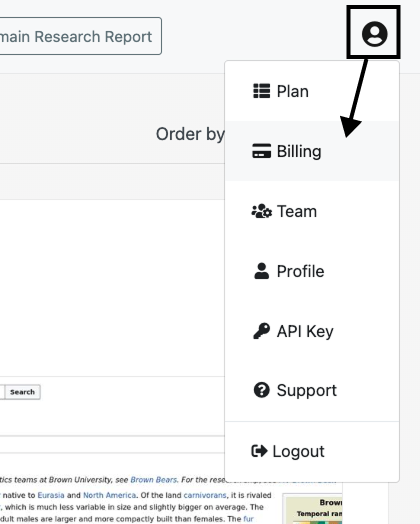
Note: If you've cancelled your plan, the Billing option will not be listed. You can still access your billing portal by visiting this link (must be logged in to PagePixels).
View invoices
Scroll to the INVOICE HISTORY section.
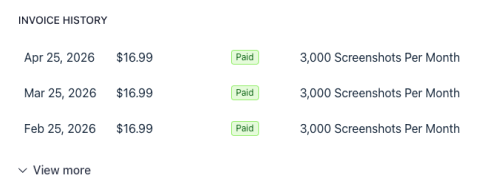
This section shows you the last 3 invoices for the account. For older invoices, click the View more text button.
Download invoice
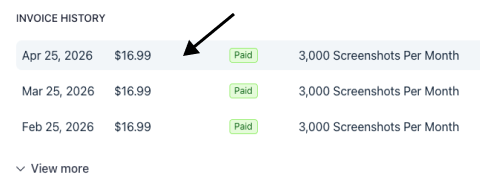
Select the invoice you want to download.
Click Download invoice or the Download receipt button.
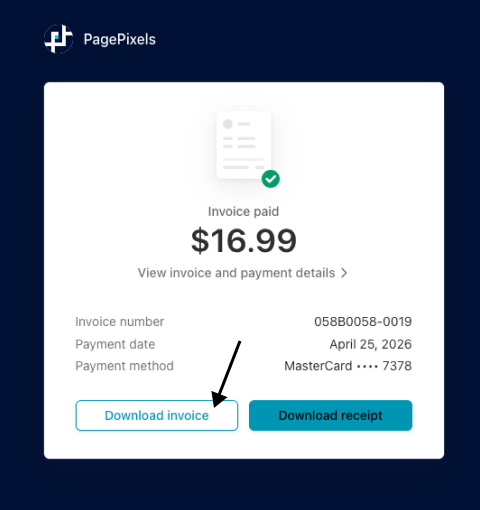
This will initiate the creation of a PDF of your invoice. Once it's ready, you can save it to your computer.