How to take automatic full page screenshots in Make.com
Learn how to automatically take screenshots of entire web pages in your Make automations with the PagePixels Screenshots Make app.
Introduction
With the PagePixels Screenshots Make app, you can automatically take website screenshots, including scrolling and capturing screenshots of entire full web pages.
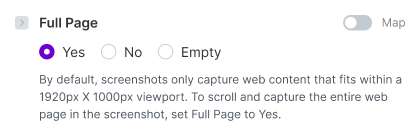
To take a full-page screenshot in Make.com, you can use PagePixels' Full Page or Full Page Advanced options in the following actions:
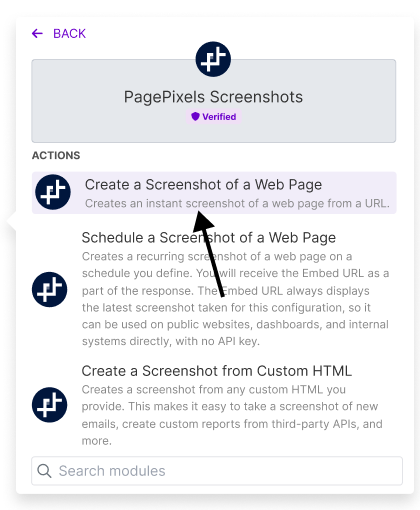
Create a Screenshot of a Web Page
Create a Screenshot from Custom HTML
Create a Real Geolocation Screenshot of a Web Page
Create a Screenshot of a Web Page and Analyze the Image with AI
Update a Screenshot Configuration
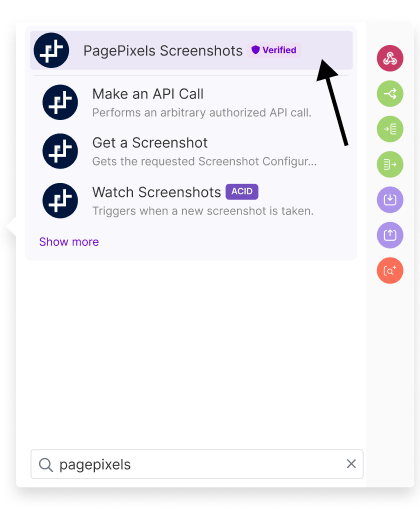
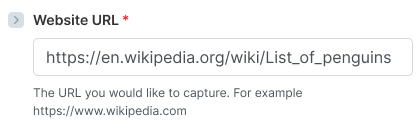
PagePixels is free to start, and this tutorial uses the PagePixels Screenshots Make.com app Create a Screenshot of a Web Page module to take full page screenshots of a Wikipedia page.
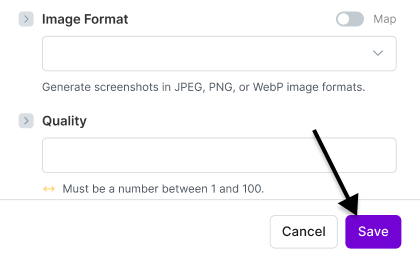
Finish configuring your screenshot settings as needed.
Click the Save button.
4
Test and preview your screenshot
Click on the "Run once" play button to test.
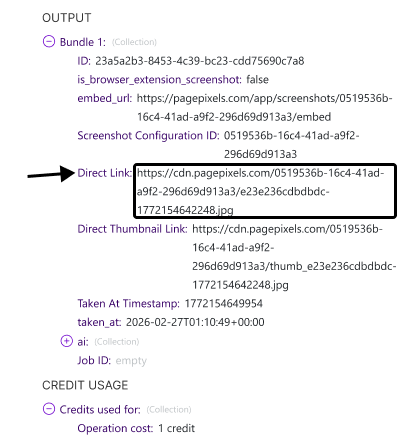
After a successful test run, visit the Direct Link output in your browser to confirm your screenshot result meets your expectations.
Note: Does your screenshot not look quite right? See the FAQ section for tips.
5
Get your screenshot ready for another app (optional)
To use your screenshot image with another Make app, you may need to download it first.
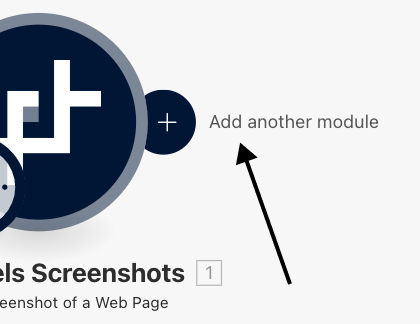
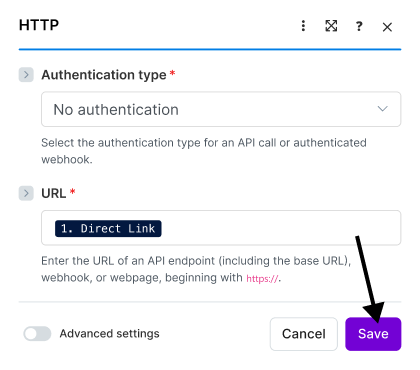
To download your full page screenshot image, click the plus Add another module button.
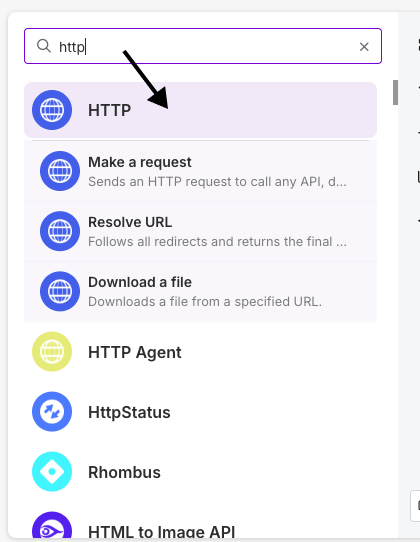
Search for and select the HTTP app.
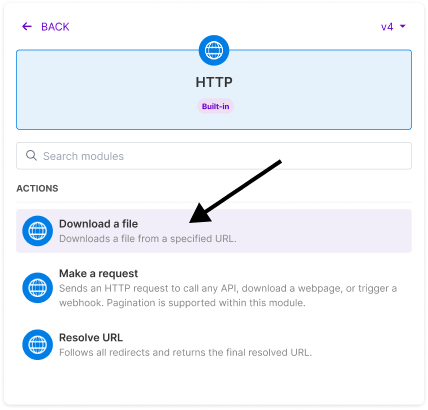
Choose the Download a file module.
Add the "Direct Link" item from PagePixels into the "URL" field. Click Save.
You're now ready to pair your screenshot with another Make app.
See our
Make Help Guide
for more comprehensive information about our Make integration.
Need help with your screenshot automation? Contact us.
Frequently Asked Questions
I used the Full Page option, but the content on the page is not fully loaded. How do I resolve this?
Here are some things you can try to encourage content to load:
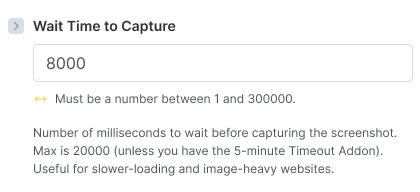
Increase Wait Time: Try setting the Wait Time to Capture field to 8000 to see if that helps. You can increase the wait time further if needed (max is 20000).
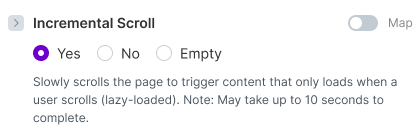
Use Incremental Scroll: This option is helpful for content that only loads when a user gradually scrolls to it.
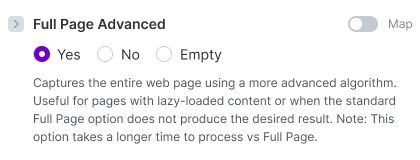
Use Full Page Advanced: This options uses an advanced algorithm to scroll and capture a full page screenshot. Note: This option can take a long while to process vs Full Page.
My captured screenshot looks cut-off. I double-checked and the Full Page option is set. What do I do?
What's likely happening is the website has CSS rules in place that limits how much of the page comes into view when the full page screenshot is being taken.
To resolve, you'd need to find the CSS that's causing the problem and override it using the CSS Injection option in Make.
If you have trouble with this, you can contact us for assistance.
I need to take screenshots of lots of different sites and it's unfeasible to preview each screenshot. Do you recommend using Full Page or Full Page Advanced for most screenshots?
In this case, we recommend using the Full Page and Incremental Scroll options together.
The reason why is the Full Page Advanced option can take a long while to process (especially for taller pages), which increases the risk of exceeding the 35 second timeout limit.
What happens if I select both Full Page and Full Page Advanced?
When you select both options, our system will ignore Full Page and use the Full Page Advanced option.
How do I monitor screenshot usage?
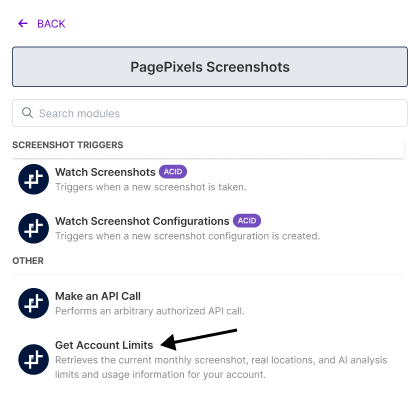
To check how much screenshots you've taken, you can:
When you automate screenshots with PagePixels and Make, you can also:
Click buttons, fill out forms, perform a search, navigate to another page, and more - all before taking a screenshot with
Multi-Step functionality
in Make.
Compare, contrast, and extract insights from screenshots and other images with the PagePixels'
Analyze any Image with AI
Action module in Make. See an example in this tutorial.
Use an
Embed URL
to dynamically share and display the latest screenshot on your website, dashboard, presentation app, and more.
Remove elements and customize the style of your resulting screenshots with PagePixels'
Custom CSS
injection feature.
Take screenshots of only part of web page using the
CSS Selector
option in Make.
Block ads and stop cookie banners from appearing in your website screenshots with PagePixels' "No Ads" and "No Cookie Banners" options in Make.
Automate structured data extraction and AI-powered text analysis for your marketing, sales, and lead generation needs with PagePixels' Create a Domain Research Report
Action module in Make.
Leverage PagePixels' full-featured
Screenshots API
to programmatically take scheduled and instant screenshots of websites and online images.
Explore even more possibilities of what you can do on our
Features page →