How to automate screenshots of Weather Underground weather report information

Learn how to take screenshots of current weather conditions on a recurring schedule with Weather Underground and PagePixels.

Introduction

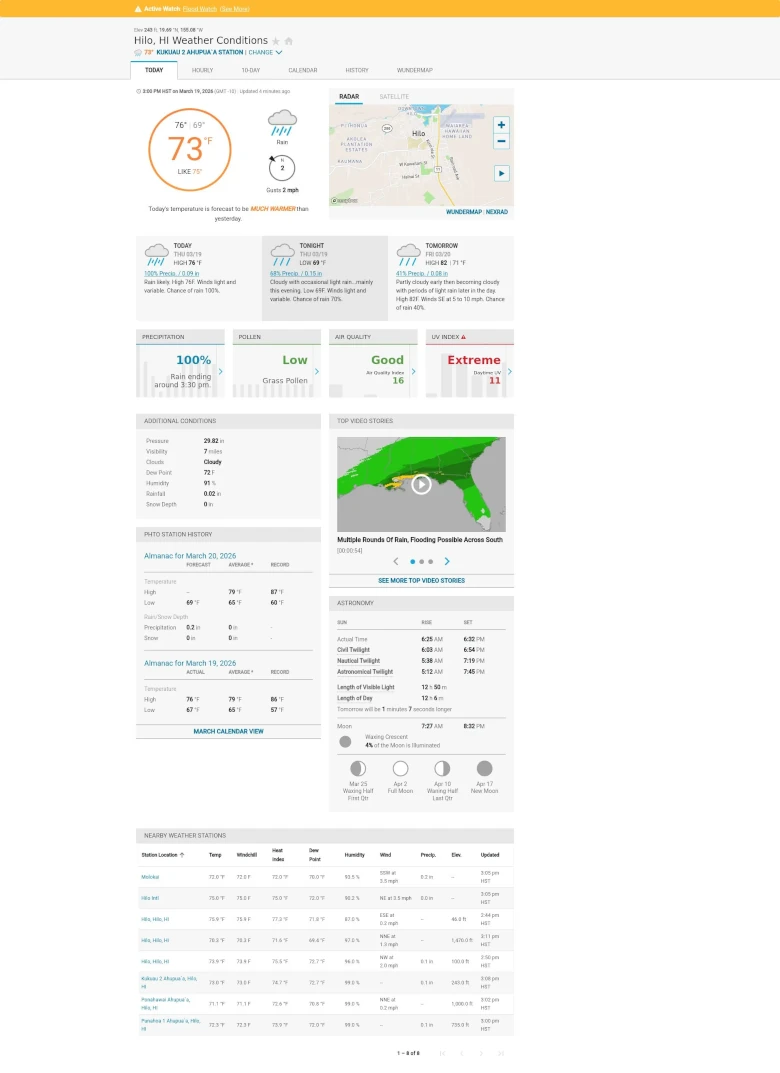
PagePixels is a screenshot automation tool that you can use to take scheduled screenshots of web pages, including the latest Weather Underground forecast information.

PagePixels is free to start, and this tutorial demonstrates how to capture a Weather Underground weather report page on a daily schedule.

Example
Prerequisites

Before you start, you'll need:

  • A PagePixels account.
  • A link to a Weather Underground weather report page for the location that interests you.
    • For example, the following link shows the weather forecast for Hilo, Hawaii:
      https://www.wunderground.com/weather/us/hi/hilo/KHIHILO90

How to automate taking screenshots of Weather Underground weather reports

To capture automatic screenshots of a Weather Underground weather report:

1

Create a screenshot

Log in to your PagePixels account, and click the +Create Screenshot button.

2

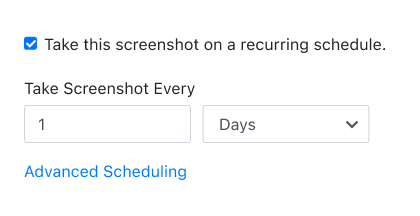
Set your schedule

By default, scheduled screenshots are taken every 5 minutes.

For a daily screenshot, update the fields to: 1 Days

3

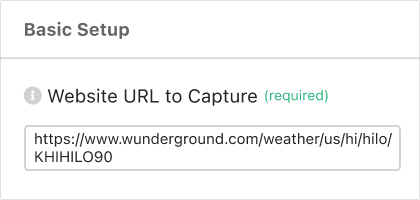
Add URL

Copy and paste a link to a Weather Underground weather report page into the Website URL to Capture field.

For example:

https://www.wunderground.com/weather/us/hi/hilo/KHIHILO90
4

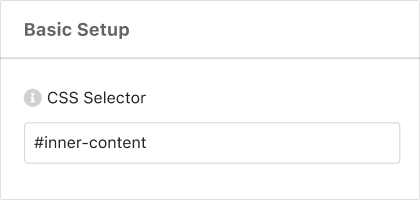
Add CSS Selector

PagePixels CSS Selector option helps you capture a specific element on a web page.

In this case - to screenshot only the weather report content (no navbar or footer) on Weather Underground's website, you can use the CSS Selector:

#inner-content
5

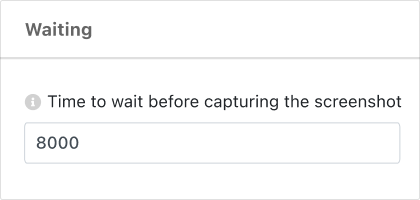
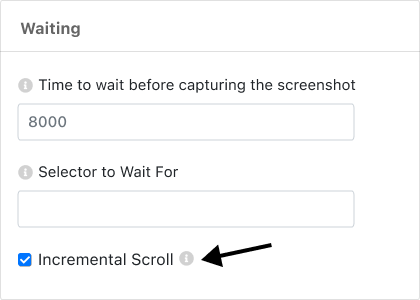
Increase Wait Time

Scroll to the Waiting section.

Change the Time to wait value from 1500 (default) to: 8000

This gives the page more time to load before the screenshot gets taken. Maximum is 20000 (ms) *

*Note: If you've purchased the 5-minute TimeOut Addon, your maximum wait time is: 300000 (ms)

6

Check Incremental Scroll

Tick the Incremental Scroll option.

This option helps trigger content that only loads when a user scrolls the page (i.e. lazy-loaded content).

7

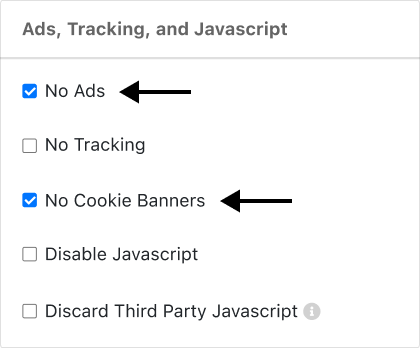
Remove Ads & Cookie Banners

Scroll to the Ads, Tracking, and Javascript section.

Select the No Ads and No Cookie Banners options.

8

Save Screenshot

Click the green Save Screenshot button (top-right).

Your screenshot automation is now set, and your first Weather Underground screenshot will be taken shortly.

What else can PagePixels do?

When you automate screenshots with PagePixels, you can also:

  • Schedule screenshots by time interval, days of the week, time of day, and time zone using PagePixels' built-in scheduling system.
  • Run a series of user browser actions on a web page before taking a screenshot, such as filling out a form and clicking buttons, with Multi-Step Screenshot functionality.
  • Send scheduled screenshots to a public or private Slack channel, a Custom Webhook address, or save your screenshot images to your Dropbox account.
  • Connect PagePixels to no-code integration platforms Zapier, Make, n8n, or Power Automate to automatically send, save, and email screenshots to thousands of services.
  • Take and have AI process your screenshot images with the AI Analysis Screenshot feature.
  • Compare and contrast multiple screenshots and other images with AI using the Multiple Image AI Analysis feature.
  • Capture screenshots from different locations around the world with PagePixels' Real Location Screenshots feature.
  • Convert data from third-party APIs, HTML emails, and other HTML content into screenshots using the Custom HTML Screenshots feature.
  • Take automatic screenshots of an entire web page with the Full Page option.
  • Capture screenshots of only a specific element on a web page with CSS Selector Screenshot capabilities.
  • Use the PagePixels Screenshot API to integrate screenshot automation into your web applications.
  • Automate structured data extraction and AI-powered text analysis for your marketing, sales, and lead generation needs with PagePixels' Domain Research feature.

Check out our features page to discover even more things you can do with PagePixels.

Support

Questions? Contact us anytime by email:

support-tickets@pagepixels.com

Or send us a message through our Support page.