How to take automatic screenshots of private content sitting behind a password login

Learn how you can capture automated scheduled screenshots of password-protected web content with PagePixels Multi-Step functionality.

Introduction

Using the PagePixels Multi-Step feature, you can automatically take screenshots of online content that requires a password login.

PagePixels Multi-Step makes this possible by allowing you to add and run a sequence of browser actions on a website before taking a screenshot (e.g. the actions to complete a login form).

Multi-Step actions simulate how a user interacts with the page and include the following:

  • Click,
  • Text Field Input,
  • Press Enter,
  • Wait for Selector,
  • Goto URL,
  • Wait X milliseconds,
  • And more. See the full list of actions here.

With these actions, you create a step-by-step browser automation to get PagePixels from a public page (such as a login form) to the private content you want to screenshot.

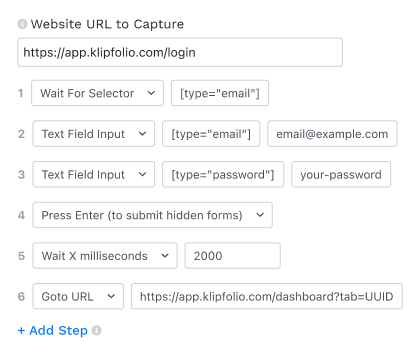
The exact actions you need to log in with Multi-Step will vary by website. However, a common pattern for single-page login forms looks something like this:
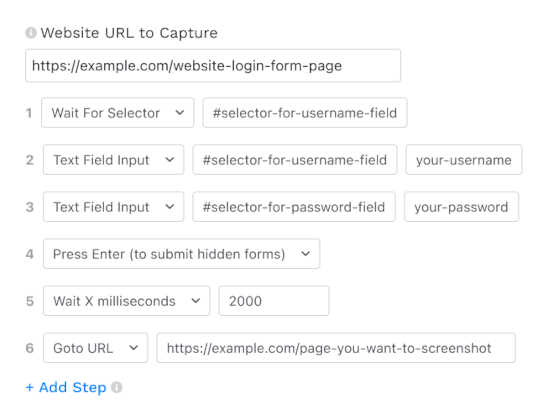
Note: PagePixels Multi-Step relies on CSS Selectors to work. See our Multi-Step Help Guide for more information.

PagePixels is free to start, and Multi-Step functionality is available in the PagePixels web app, Screenshot API, Zapier, Make.com, and Power Automate.

To further illustrate how to use Multi-Step for logging in, this tutorials walks through a real example of completing Klipfolio's login form and capturing a screenshot of a private dashboard page using the PagePixels web app.
How to take screenshots of private content behind a password login

Login Example: Klipfolio

As an example of how to use Multi-Step to log in, we're going to use Klipfolio, a business dashboarding tool.

Screenshot Example

To create a screenshot automation that logs in to Klipfolio and captures a specific dashboard page on a daily schedule:

1

Create a screenshot

Log in to your PagePixels account, and click the +Create Screenshot button.

2

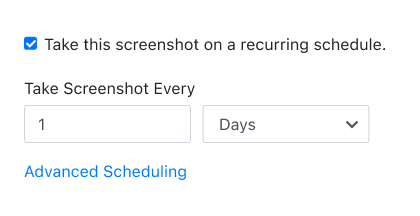
Set your schedule

By default, scheduled screenshots are taken every 5 minutes.

For a daily screenshot, update the fields to: 1 Days

3

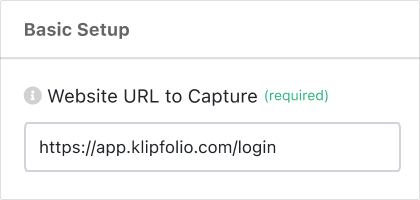
Add login page URL

Copy and paste the login page's URL into the "Website URL to Capture" field. For example:

https://app.klipfolio.com/login

This field is the starting point for your first Multi-Step action (instead of the page you want to capture).

4

Add Multi-Step Actions

To log in to Klipfolio and navigate to the dashboard page, click +Add Step and add the following Multi-Step Actions.

Wait For Selector

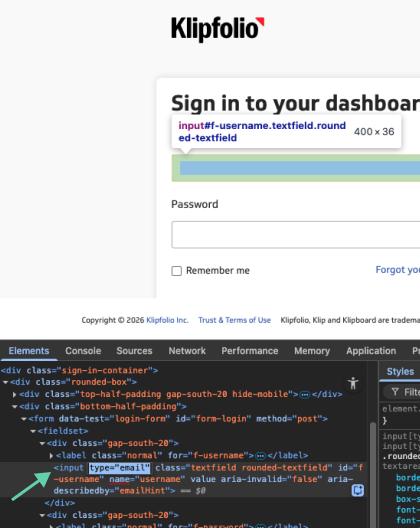
This action waits for the email input field to be available for interaction.

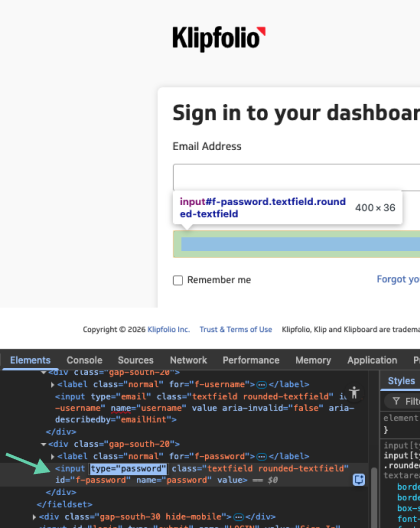
The input field is identified by the CSS Selector:

[type="email"]

Note: Need help identifying a CSS selector for your use case? Contact us.

Text Field Input

This action adds text to the email input field using the same CSS Selector as above.

Text Field Input

This action adds text to the password input field using the CSS Selector:

[type="password"]

Press Enter

This action submits the login form to Klipfolio by emulating pressing enter on the keyboard.

Wait X milliseconds

This action waits for a set amount of milliseconds. For example:

2000

This allows enough time for authentication before the next step.

Note: You can increase this time if needed (Max is 15000, unless you have the 5-minute TimeOut Addon).

Goto URL

This action redirects to a specified URL.

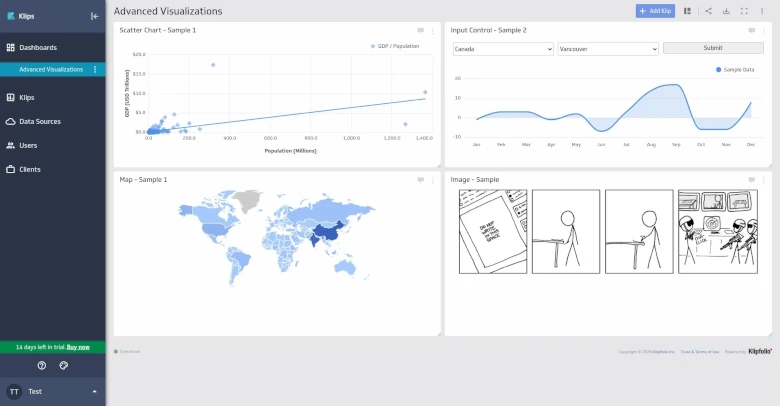
In this case, it navigates to the private dashboard page we want to screenshot.

5

Save Screenshot

Click the green Save Screenshot button (top-right).

Your Multi-Step screenshot automation is now set and your first screenshot will be taken shortly.

See our Multi-Step Help Guide for more comprehensive information and examples.

Frequently Asked Questions

How do I bypass bot verification such as CAPTCHAs?

Multi-Step does not support bypassing bot verification tools. Depending on the content you want to screenshot, you can try the following:

  • Real Locations: Capture screenshots through real local IP addresses, which are less likely to be flagged as bots.
  • Chrome Extension: Take automatic screenshots directly through your browser (instead of PagePixels' servers). Screenshots are saved to your PagePixels account, making them accessible to the API, Zapier, and Make.
How do I complete a login that requires 2FA, MFA, social sign-in (e.g. Google), or email verification?

Multi-Step does not support logging in with 2FA, MFA, social sign-in, email verification, and other advanced authentication methods.

To capture content with more advanced authentication, you can try:

  • Chrome Extension: The extension can use your authenticated browser session to capture screenshots of private content.
  • Custom HTML: If the content is accessible through an API, Zapier, or Make, you can use Custom HTML functionality to convert HTML and data into screenshots (including emails).
  • Public Share Link: If the site offers a public share URL option for the content you want to screenshot, you can use PagePixels directly, without dealing with authentication.
What value am I supposed to put for the selector field?

The selector field takes in a CSS Selector that identifies the element you'd like to perform an action on. It's how our system knows which button to click or which input to fill in on the page.

For example, if you'd like to add text to this input element on Wikipedia's home page:

<input id="searchInput" name="search" type="search" size="20" autofocus="autofocus" accesskey="F" dir="auto" autocomplete="off" style="padding-right: 64px;">

You could use the selector: #searchInput

Note: For best results, you'll want to choose a selector that's unique to that element.

If you'd like to learn more about CSS Selectors, we recommend MDN's documentation on this topic.

Do you have any best practices for logging in using Multi-Step?

Yes. When logging in with Multi-Step, we recommend the following:

  • Use an account with the lowest necessary permissions to capture the content.
  • Use an account dedicated for use with PagePixels only.
    • This can be especially helpful if the app content you're trying to screenshot limits how many devices can login at any one time for a single account.
    • Important Note: Some applications charge per user, and creating a dedicated account for PagePixels could increase your costs for that app.
  • Confirm with your team that logging in with Multi-Step is an acceptable use of credentials.
  • Want to avoid storing credentials in PagePixels' system altogether? Consider using our Chrome Extension instead.
    • Our Chrome Extension uses your authenticated browser session (not your credentials) to screenshot private content.
Can I get assistance with setting up my Multi-Step screenshot?

Yes. We're happy to offer free personalized setup guidance for your first Multi-Step screenshot.

Please see the Get Help section of our Multi-Step Help Guide for more information.

What else can PagePixels do?

When you automate screenshots with PagePixels, you can also:

  • Schedule website screenshots by time interval, days of the week, time of day, and time zone using PagePixels' built-in scheduling system.
  • Send scheduled screenshots to a Slack channel, a Custom Webhook address, or save the images in your Dropbox account.
  • Automatically integrate your screenshots with thousands of services, such as Google Drive, Google Sheets, OneDrive, and Discord, with the PagePixels Zapier, Make, n8n, or Power Automate integrations.
  • Automatically have AI process your screenshot images with the AI Analysis Screenshot feature.
  • Dynamically display the most up-to-date screenshot on your website, data visualization tool, and app with a single Embed URL.
  • Leverage proxies to capture website screenshots from different locations around the world with the Real Location Screenshots feature.
  • Remove elements and customize the style of your screenshot with PagePixels' Custom CSS Injection feature.
  • Convert data from third-party APIs, HTML emails, and other HTML content into screenshots using the Custom HTML Screenshots feature.
  • Block ads and stop cookie banners from showing up in your screenshots.
  • Use PagePixels Screenshots API to add screenshot automation to your web application.
  • Ask AI to compare and contrast multiple screenshots or other images using the Multiple Image AI Analysis feature.
  • Capture automatic screenshots of content requiring advanced authentication using the PagePixels Screenshots Chrome Extension.
  • Automate structured data extraction and AI-powered text analysis for your marketing, sales, and lead generation needs with PagePixels' Website Domain Research feature.

See even more possibilities of what you can do on our Features page →

Support

Questions? Contact us anytime by email:

support-tickets@pagepixels.com

Or send us a message through our Support page.