How to automatically take emulated mobile website screenshots

Learn how to use Page Width, Page Height, and User Agent fields in PagePixels to emulate mobile website screenshots on different devices.

Introduction

PagePixels is a screenshot automation tool you can use to capture emulated mobile screenshots for different devices on a recurring schedule you define.

To accomplish this in PagePixels, you can set the "Page Width", "Page Height", and "User Agent" fields to match the device you want to emulate.

For example, to emulate an iPhone 15 Pro mobile device screenshot, you can use the settings in the table below.

Device Page Width Page Height User Agent
iPhone 15 Pro
393
852
Mozilla/5.0 (iPhone16,2; CPU iPhone OS 17_5_1 like Mac OS X) AppleWebKit/605.1.15 (KHTML, like Gecko) Mobile/15E148 Resorts/4.7.5

Below is an example screenshot generated using these settings:
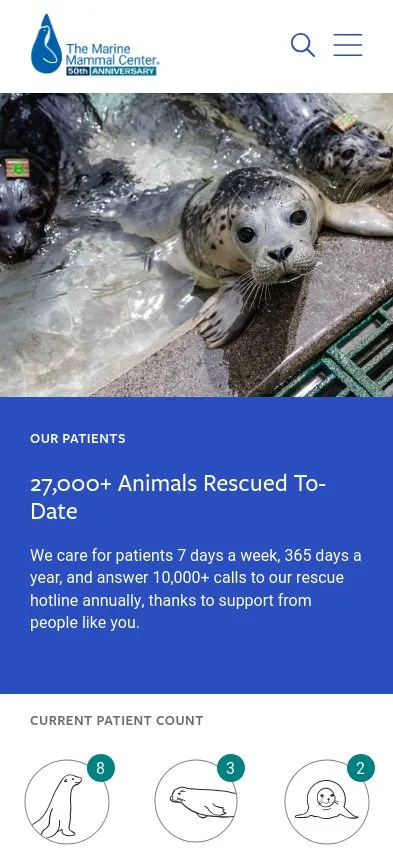
*Please note, some websites respond differently to user agents which may affect your results.

You can emulate mobile device screenshots in the PagePixels web app, Zapier, Make.com, n8n, Power Automate, and through the Screenshot API.

PagePixels is free to start, and below are step-by-step instructions for how to automatically emulate a mobile website screenshot in the PagePixels web app on a daily schedule.

How to capture daily emulated mobile screenshots in PagePixels

To automatically take mobile screenshots on a daily schedule in the PagePixels web app:

1

Create a screenshot

Log in to your PagePixels account, and click the +Create Screenshot button.

2

Set your schedule

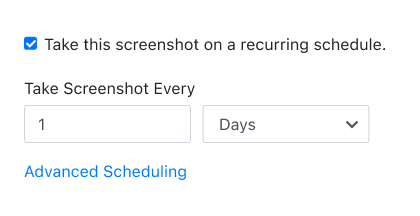
By default, scheduled screenshots are taken every 5 minutes.

For a daily screenshot, update the fields to: 1 Days

3

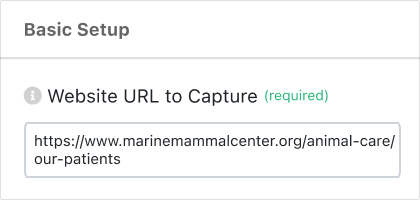
Add your URL

Copy your web page URL and paste it into the Website URL to Capture field.

4

Set Page Dimensions

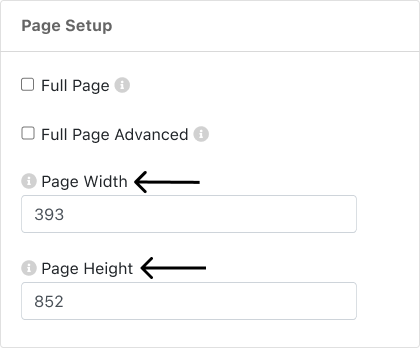
Scroll down to the Page Setup section.

Enter the mobile device dimensions into the Page Width and Page Height fields.

5

Add User Agent String

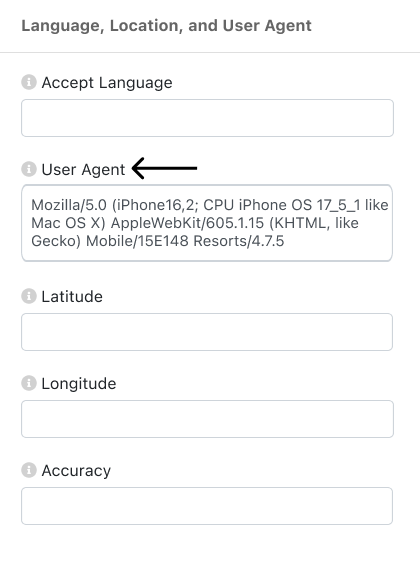
Scroll to the Language, Location, and User Agent section.

Update the User Agent field with your device's user agent string.

6

Finish configuring your screenshot (optional)

PagePixels has 20+ screenshot options you can use to get your screenshots to look just right.

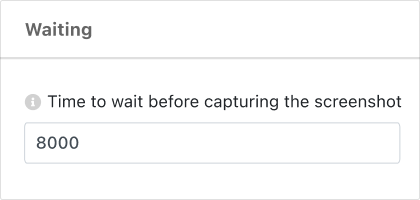
For example, to allow content more time to load, you can increase the Time to wait value to 8000.

Note: Maximum wait time is 20000 (ms) unless you have the 5-minute TimeOut Addon enabled.

7

Save Screenshot

Click the green Save Screenshot button (top-right).

Your mobile screenshot automation is now running and your first screenshot will be taken shortly.

Need help automating screenshots? Contact us.

Mobile device settings reference

For easy reference, the tables below contain settings you can use in PagePixels for emulating different mobile devices.

iOS Devices

Device Page Width Page Height User Agent
Apple iPhone 16
393
852
Mozilla/5.0 (iPhone17,3; CPU iPhone OS 18_3_2 like Mac OS X) AppleWebKit/605.1.15 (KHTML, like Gecko) Mobile/15E148 FireKeepers/1.6.1
Apple iPhone 16 Pro
402
874
Mozilla/5.0 (iPhone17,1; CPU iPhone OS 18_2_1 like Mac OS X) AppleWebKit/605.1.15 (KHTML, like Gecko) Mobile/15E148 Mohegan Sun/4.7.4
Apple iPhone 15
393
852
Mozilla/5.0 (iPhone; CPU iPhone OS 18_0 like Mac OS X) AppleWebKit/605.1.15 (KHTML, like Gecko) Version/18.0 Mobile/15E148 Safari/604.1
Apple iPhone 15 Pro
393
852
Mozilla/5.0 (iPhone16,2; CPU iPhone OS 17_5_1 like Mac OS X) AppleWebKit/605.1.15 (KHTML, like Gecko) Mobile/15E148 Resorts/4.7.5
Apple iPhone 14
390
844
Mozilla/5.0 (iPhone14,7; CPU iPhone OS 18_3_2 like Mac OS X) AppleWebKit/605.1.15 (KHTML, like Gecko) Mobile/15E148 Mohegan Sun/4.7.3

Android Devices

Device Page Width Page Height User Agent
Google Pixel 9
412
923
Mozilla/5.0 (Linux; Android 14; Pixel 9 Build/AD1A.240411.003.A5; wv) AppleWebKit/537.36 (KHTML, like Gecko) Version/4.0 Chrome/124.0.6367.54 Mobile Safari/537.36
Google Pixel 8 Pro
448
998
Mozilla/5.0 (Linux; Android 15; Pixel 8 Pro Build/AP4A.250105.002; wv) AppleWebKit/537.36 (KHTML, like Gecko) Version/4.0 Chrome/132.0.6834.163 Mobile Safari/537.36
Google Pixel 8
412
915
Mozilla/5.0 (Linux; Android 15; Pixel 8 Build/AP4A.250105.002; wv) AppleWebKit/537.36 (KHTML, like Gecko) Version/4.0 Chrome/132.0.6834.163 Mobile Safari/537.36
Samsung Galaxy S25
360
780
Mozilla/5.0 (Linux; Android 15; SM-S931B Build/AP3A.240905.015.A2; wv) AppleWebKit/537.36 (KHTML, like Gecko) Version/4.0 Chrome/127.0.6533.103 Mobile Safari/537.36
Samsung Galaxy S24 Ultra
384
824
Mozila/5.0 (Linux; Android 14; SM-S928B/DS) AppleWebKit/537.36 (KHTML, like Gecko) Chrome/120.0.6099.230 Mobile Safari/537.36
Samsung Galaxy S23
360
780
Mozilla/5.0 (Linux; Android 13; SM-S911B) AppleWebKit/537.36 (KHTML, like Gecko) Chrome/104.0.0.0 Mobile Safari/537.36 Dalvik/2.1.0 (Linux; U; Android 13; SM-S911B Build/TP1A.220624.014)

What else can PagePixels do?

When you automate mobile screenshots with PagePixels, you can also:

  • Schedule website screenshots by time interval, days of the week, time of day, and time zone using PagePixels' built-in scheduling system.
  • Run a series of user browser actions on a web page before taking a screenshot, such as filling out a form and clicking buttons, with Multi-Step Screenshot functionality.
  • Automatically send screenshots to a Slack channel, a Custom Webhook address, or save the images in your Dropbox account.
  • Automatically integrate your screenshots with thousands of services, such as Google Drive, Google Sheets, OneDrive, and Discord, with the PagePixels Zapier, Make, n8n, or Power Automate integrations.
  • Automatically have AI process your screenshot images with the AI Analysis Screenshot feature.
  • Dynamically display the most up-to-date screenshot on your website, data visualization tool, and app with a single Embed URL.
  • Leverage proxies to capture website screenshots from different locations around the world with the Real Location Screenshots feature.
  • Remove elements and customize the style of your screenshot with PagePixels' Custom CSS Injection feature.
  • Convert data from third-party APIs, HTML emails, and other HTML content into screenshots using the Custom HTML Screenshots feature.
  • Use PagePixels Screenshots API to add screenshot automation to your web application.
  • Ask AI to compare and contrast multiple screenshots or other images using the Multiple Image AI Analysis feature.
  • Capture automatic screenshots of content requiring advanced authentication using the PagePixels Screenshots Chrome Extension.
  • Automate structured data extraction and AI-powered text analysis for your marketing, sales, and lead generation needs with PagePixels' Domain Research feature.

Explore even more possibilities of what you can do with PagePixels on our Features page →

Support

Questions? Contact us anytime by email:

support-tickets@pagepixels.com

Or send us a message through our Support page.